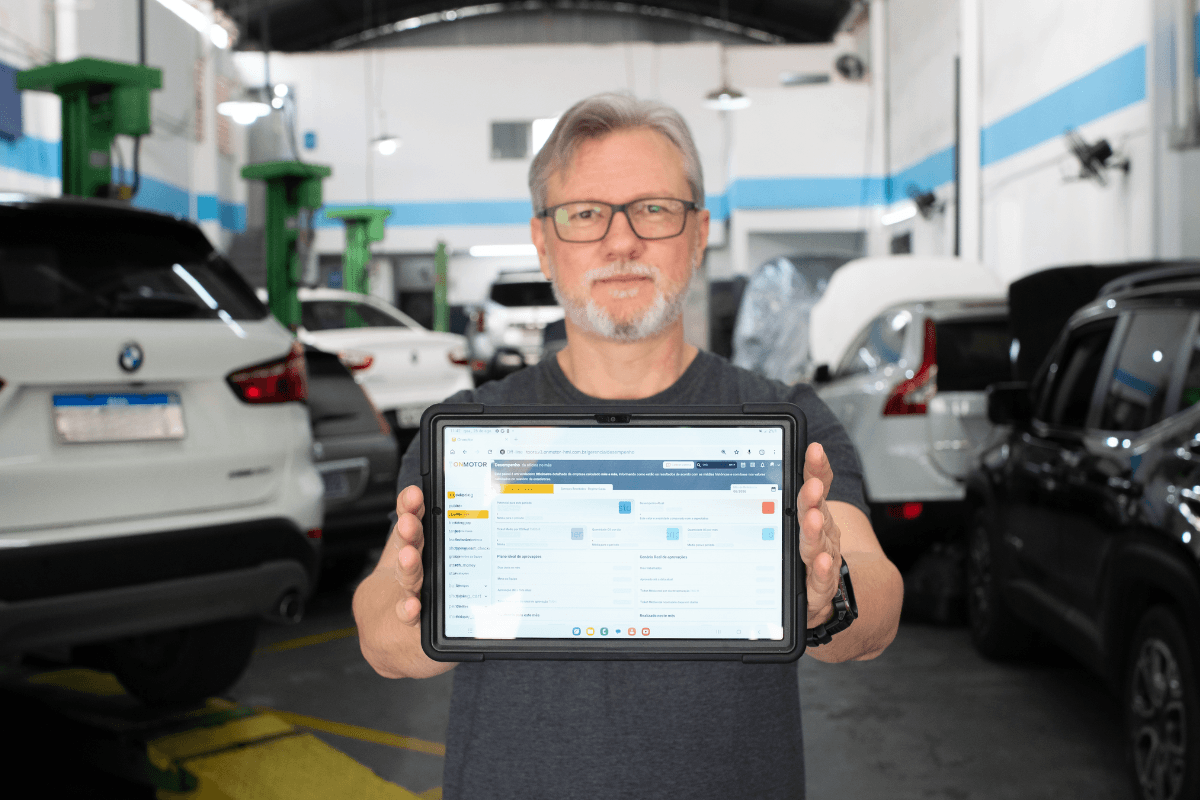
Estimate templates: how to create and use them in Onmotor
Having ready-made estimate templates is essential for auto repair shops. A clear, quick estimate can be what convinces a customer to book the job with your shop. If you don't have yours yet, it is time to create them. Here is how to build and use estimate templates in the Onmotor software, developed in Brazil, plus tips to make them complete.
Step by step: creating estimate templates in the system
Having ready-made estimate templates speeds up service. You don't need to build an estimate from scratch every time: just open the template and adjust what changes for each job.
To create a template in Onmotor (the interface is in Portuguese):
- open the system
- in the top menu, go to the "Serviços" (Services) tab
- in the left column, click "Criar" (Create), in the same place where you open work orders
- fill in the "Veículo" (Vehicle) field with the license plate
- select "Serviços e Peças" (Services and Parts)
- fill in the "Lista de diagnósticos", "Lista de serviços" and "Lista de peças" (diagnosis, services and parts lists)
- click the "Salvar como modelo" (Save as template) button
- name the template in the window that appears
Repeat for each template. To save time, copy and paste items you have already filled in.
Tips for complete estimate templates
Include the basics
Every estimate sent to a customer should include:
- company details, such as CNPJ (Brazil's company tax ID), address and contact
- issue date
- problems diagnosed in the vehicle
- services (labor)
- parts description
- price of each service and part
- total
- estimated time for the job
- estimate expiry date
Create templates for your most common jobs
Having several templates saved makes editing easier and speeds up your reply to the customer. Some useful examples for repair shops:
- inspection: a base template for general, cooling system, brake and other inspections, with the items they have in common
- parts replacement: jobs such as engine and transmission oil changes, filters and bulbs
- system maintenance: templates for maintaining a specific area of the car
These are just examples. Think about the jobs your shop does most and create templates for them.
How to use saved templates
Here is how to use saved templates in the system:
- open the system
- go to the "Serviços" tab
- in the left column, click "Criar"
- enter the license plate in the "Veículo" field
- select "Serviços e Peças"
- click "Abrir modelo salvo" (Open saved template)
- choose the template and click "Inserir" (Insert)
- adjust the details and prices
- save and send the estimate to the customer
Faster estimates every day
With ready-made templates, the shop responds faster and more consistently. Discover the Onmotor system, available across Brazil, and get in touch with our team.